How it works
How to turn your invitation card into a website
Upload the invitation card you already have, check the details CardToPage reads from it, pick a design and the features you want, then publish and share one link. Guests open it in any phone browser, with no app and no sign-in.
The 6 minute film below shows every step in the real app. The written steps follow it, with the exact button names.
 6:20
- 1
Upload your card
- Click Upload your card on the home page, or in your dashboard.
- Sign in with Google.
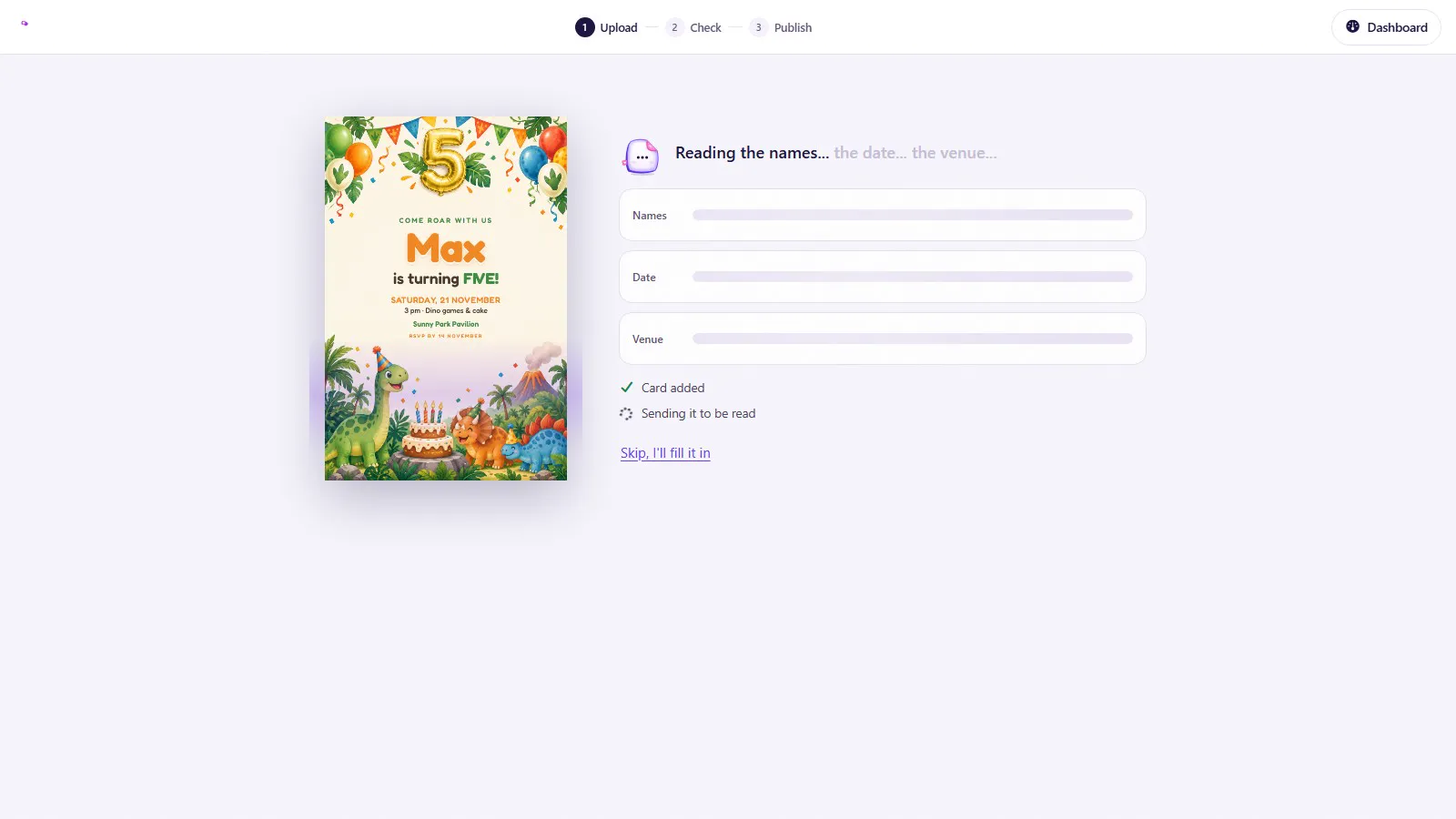
- Click Choose a card and pick your invitation. A photo, JPG, PNG, WebP, HEIC or an MP4 video all work, up to 5 pages.
- Wait a few seconds while it reads the names, the date and the venue. Or click I'll type the details myself.
Have a PDF? Convert it to images first, then upload those.
- 2
Check your details
- Anything read from your card is marked From your card. Change anything that is off.
- Who: the names, and a short tagline if you like.
- When: the date and the time. Your page stays live until 14 days after this date, so you can download your photos, wishes and replies, then it is deleted automatically. More than one event, like a haldi and a wedding? Click Add another event.
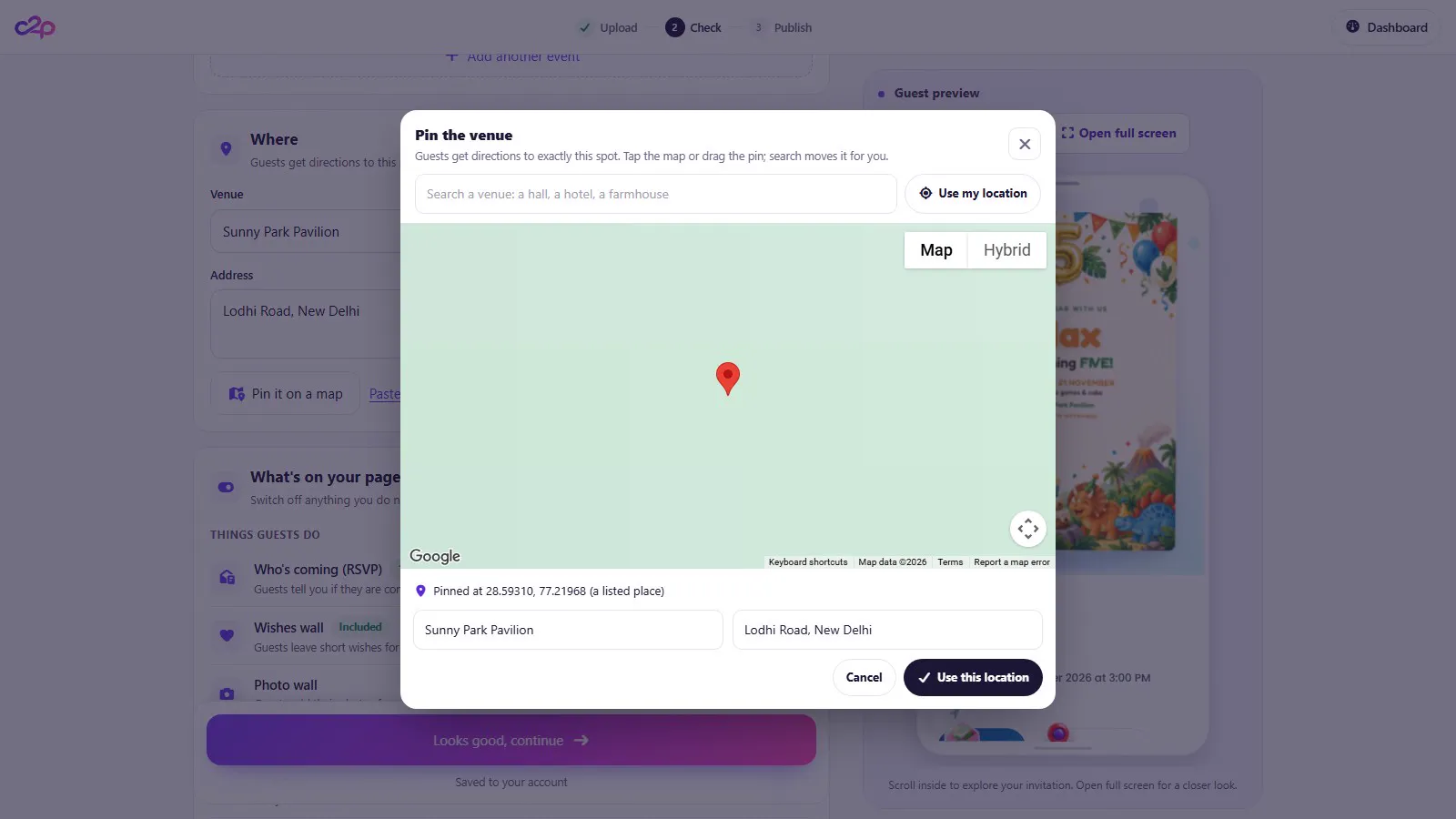
- Where: the venue and the address. Click Pin it on a map, search your venue or drag the pin, then click Use this location. Or use Paste a Google Maps link instead.
The guest preview on the right updates as you type, so you always see what guests will see.
- 3
Choose your design and color
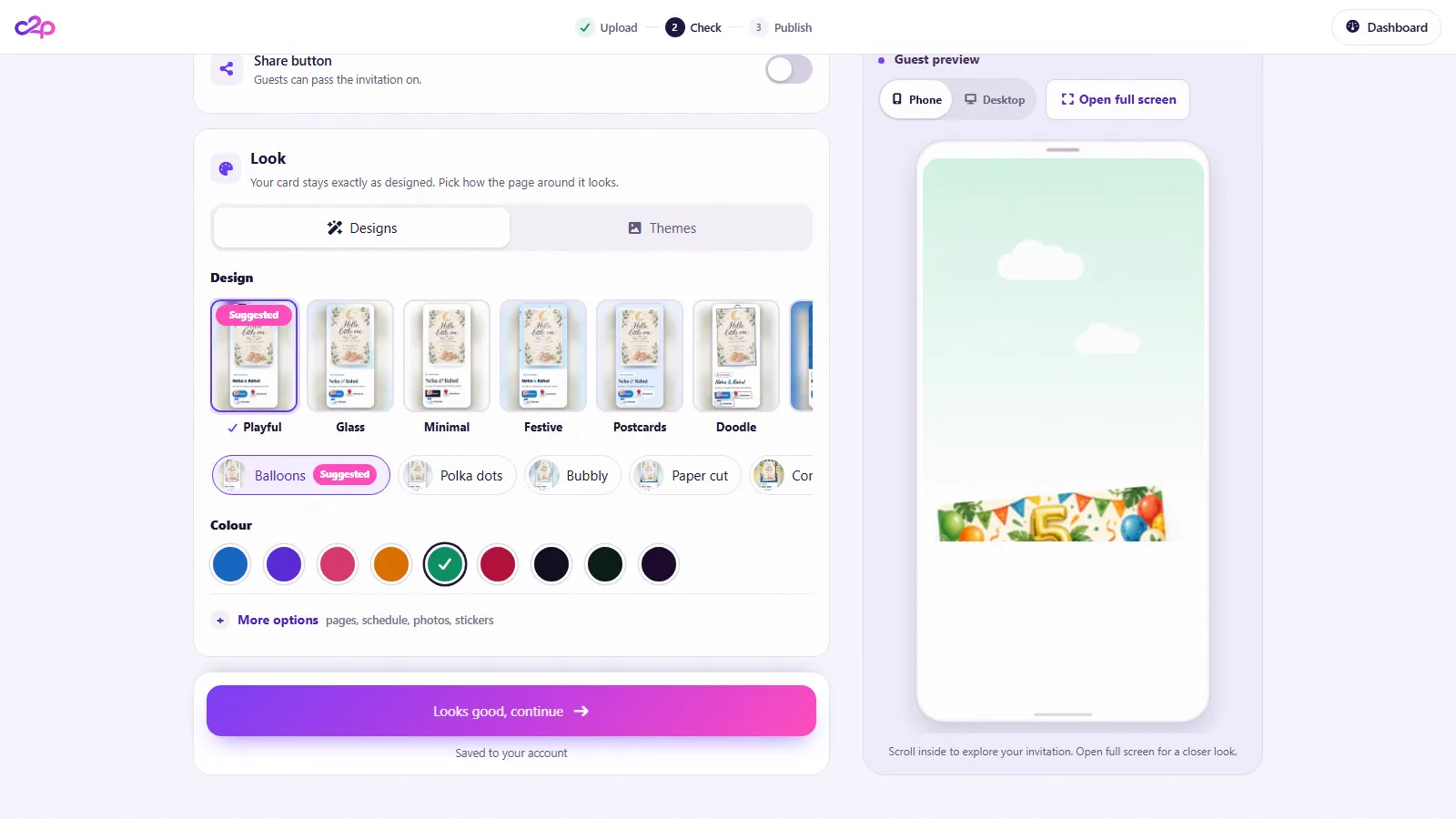
- Scroll to Look. Your card always stays exactly as you designed it. Only the page around it changes.
- Start with Suggested for your card and click Try it. We pick it from your occasion.
- Or pick a design family under Design (Glass, Minimal, Festive, Playful, Postcards, Doodle, Bold or Aurora), then one of its styles.
- Pick a Colour. The guide below shows how to choose.
- Open More options. Card pages sets how your pages move. Schedule picks the layout of your events, like Timeline or Flip clock. Photos picks how your gallery moves, like Polaroid scatter or 3D ring. Stickers adds a pack of floating stickers.
- Prefer artwork? Open the Themes tab. Click Designs to go back.
How to choose a color
- Pick the color your card already uses the most. Green leaves suit Emerald, and pink flowers suit Rose.
- A light, bright card looks best with a bright color.BlueVioletRoseMarigoldEmerald
- A dark or rich card, like gold on black or deep red, looks best with a deep color.MidnightForestRubyPlum and gold
- Then check the preview. If the names or buttons are hard to read, try the next color.
- 4
Switch features on or off
- Under What's on your page, each switch adds or removes one thing on your guest page.
- Switching one on opens its own small box underneath, like the phone number for Call buttons.
- For Music, tick the rights box, then upload a track or paste a YouTube link. Set Loop from and to (leave both blank to loop the whole song) and the Volume. Tick Start music when the invite is opened to play it by itself.
- Not sure? Keep the defaults. You can switch anything on or off from your dashboard later.
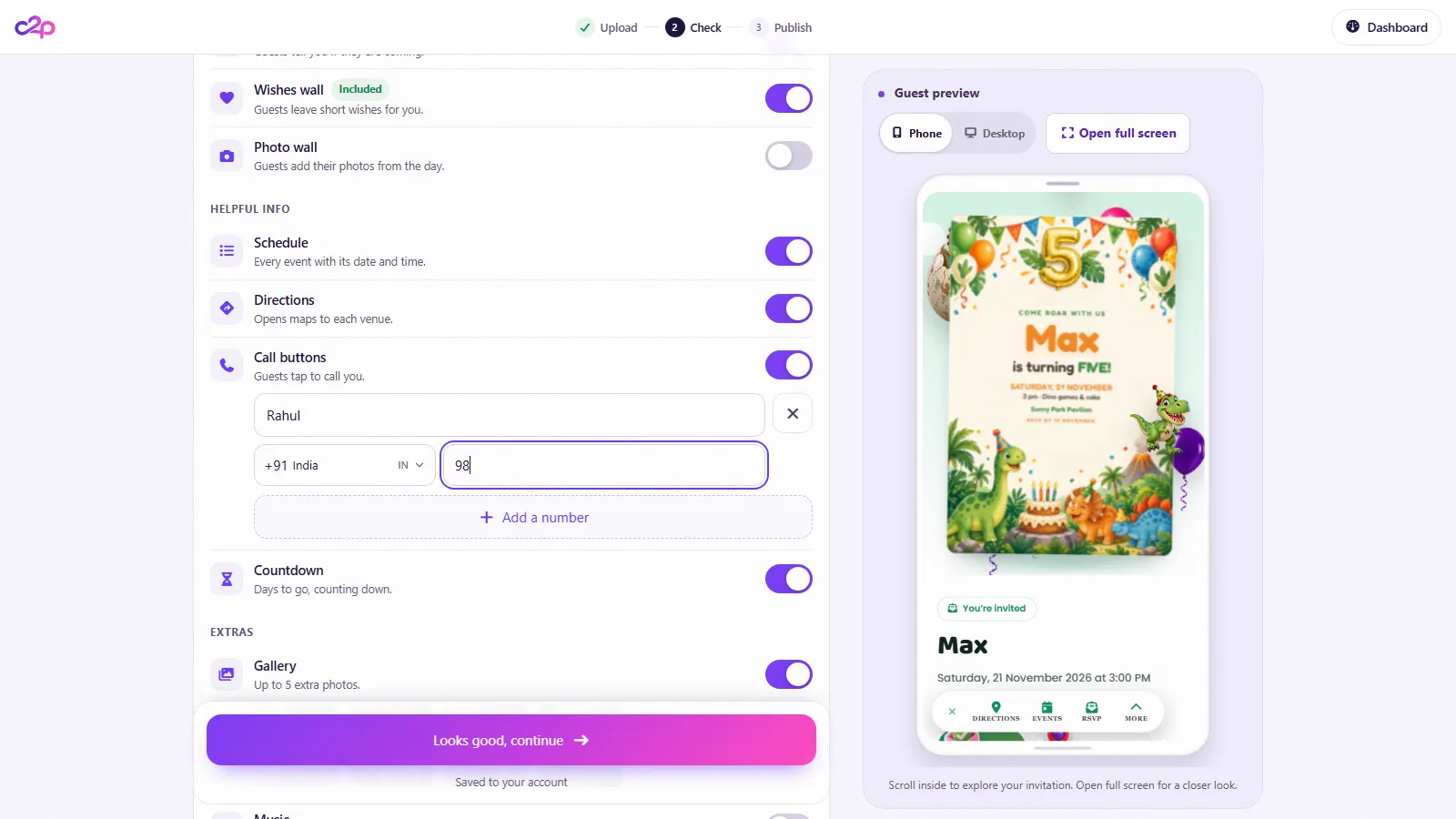
Every switch, and what it does
Things guests do
Starts onWho's coming (RSVP)Guests tell you if they are coming. Replies land in your dashboard.Starts onWishes wallGuests leave short wishes for you.Starts offPhoto wallGuests add their photos from the day. A paid add-on you add after you publish.Helpful info
Starts onScheduleEvery event with its date and time.Starts onDirectionsOpens maps to each venue in one tap.Starts onCountdownDays to go, counting down.Starts offCall buttonsGuests tap to call you. Add a name and a phone number, up to four.Extras
Starts offGalleryUp to 5 extra photos.Starts offMusicPlays after a guest's first tap. Upload a track or paste a YouTube link, and confirm you have the rights.Starts offHost noteA short message from you, like no gifts please.Starts offShare buttonGuests can pass the invite on. Leave it off for a fixed guest list. - 5
Preview and publish
- Switch the preview between Phone and Desktop, or click Open full screen.
- Click Looks right. Next: choose a look.
- On Ready to publish, check your summary. Click Change to pick your own link, like cardtopage.com/i/max-turns-five.
- Have a coupon code? Enter it and click Apply.
- Click Publish and pay once in the secure payment window. There is no subscription.
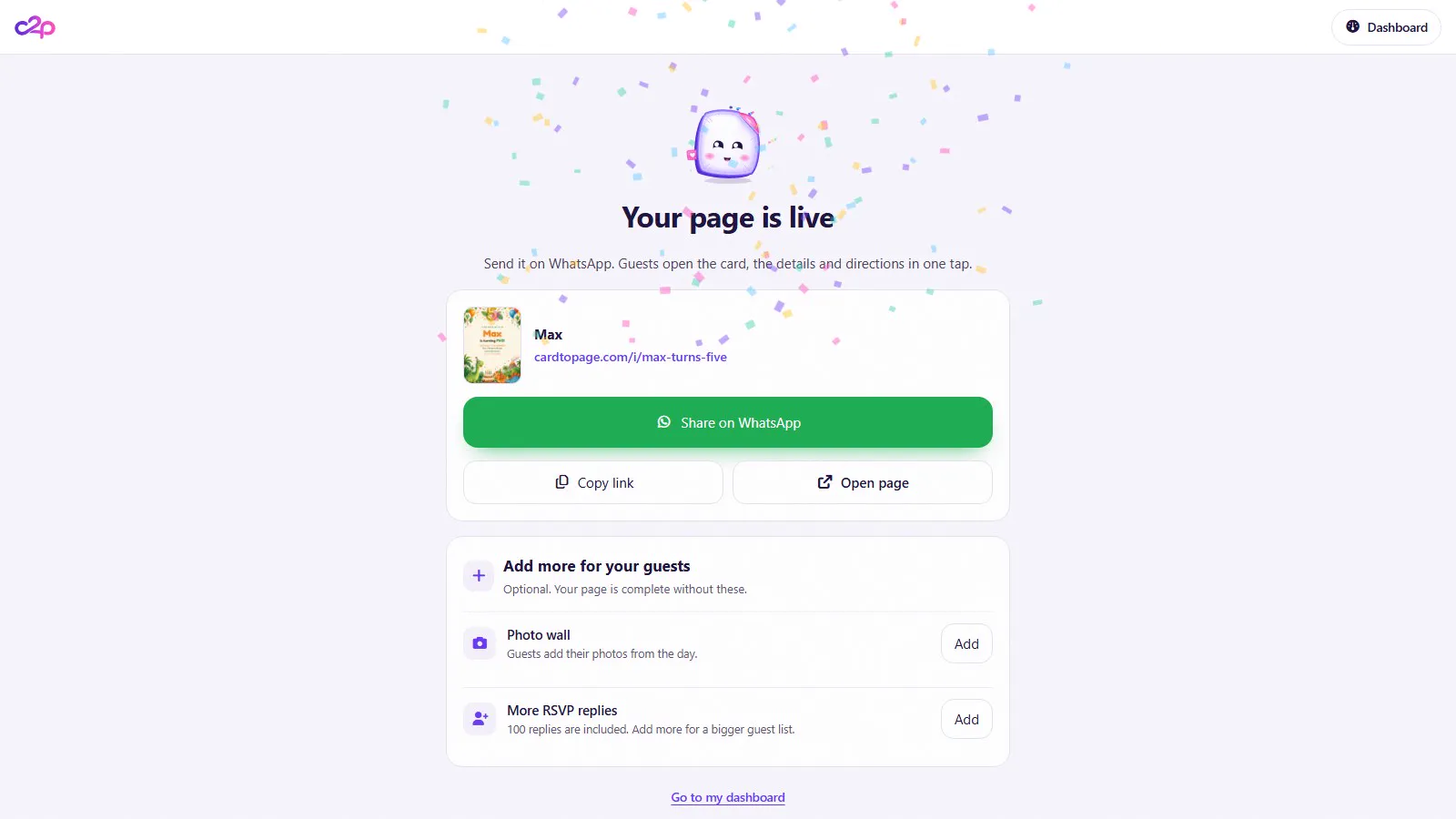
- Your page is live. Click Share on WhatsApp, or Copy link to paste it anywhere.
- 6
Manage it from your dashboard
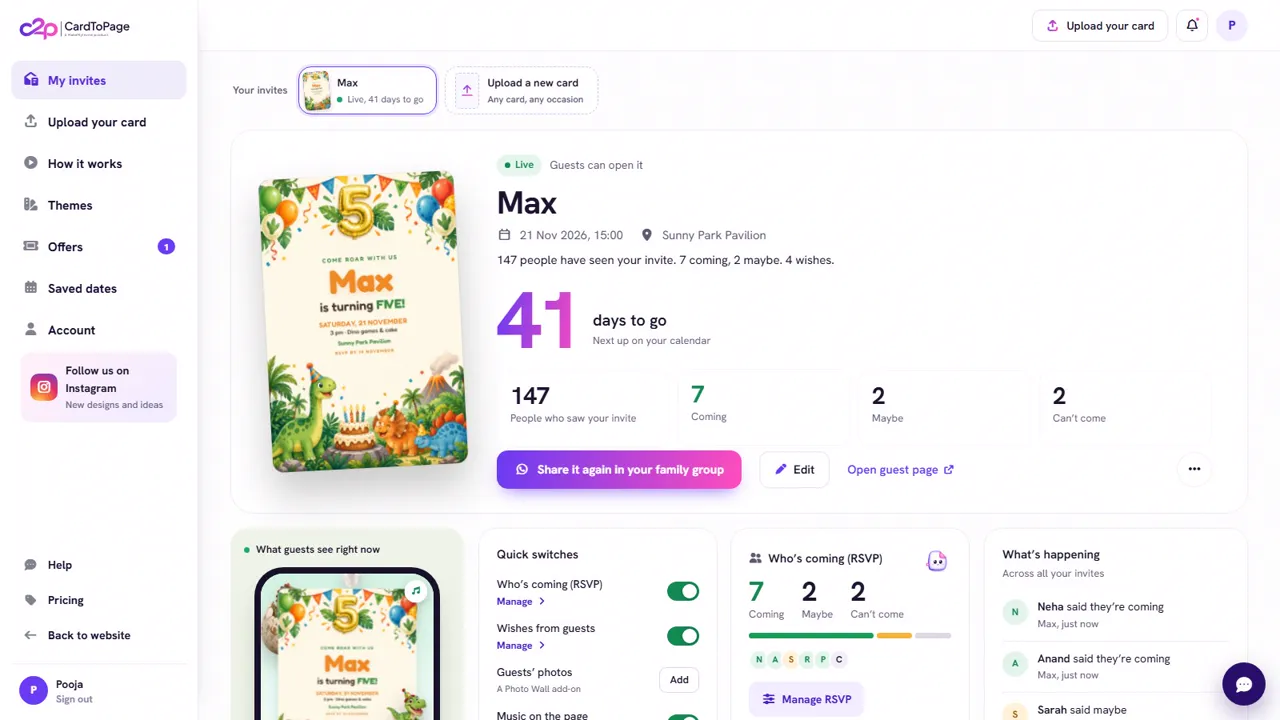
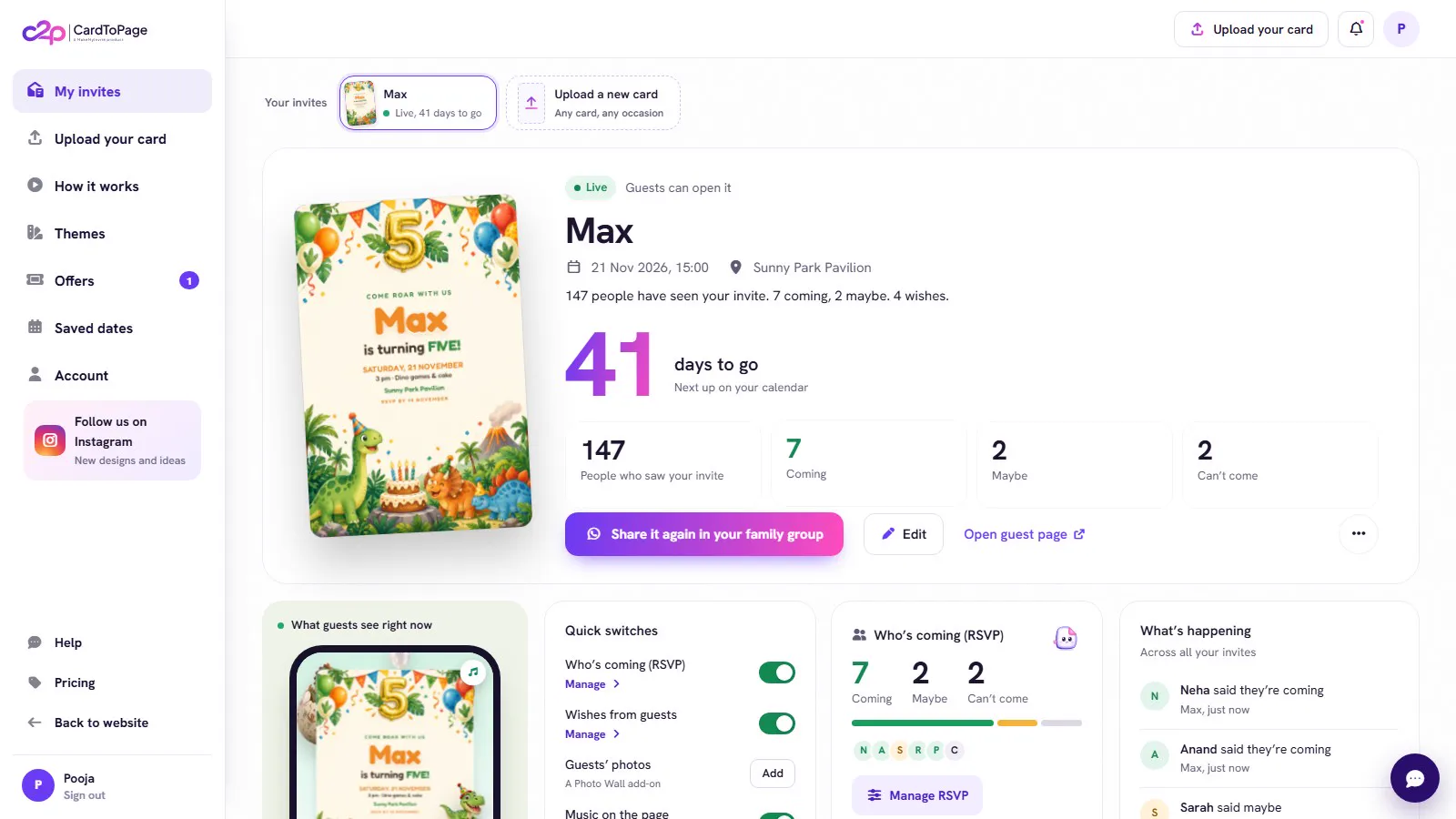
- My invites shows every invite, how many people saw it, and who is coming.
- Quick switches turn a feature on or off. Guests see the change right away, and Undo puts it back.
- Manage RSVP lists every reply. Filter by Coming, Maybe or Can't come, and Download the list as Excel, PDF or CSV.
- Manage wishes lets you show wishes Right away or only After I approve.
- New design or color later? Open the ⋯ menu, click Change the look, pick one, then Save and update my page.
- Fix a detail: click Edit, change it, then Save and update my page. Your link stays the same.
- Share again: ⋯ menu, then QR code and other ways to share for WhatsApp, SMS, email, or a QR code for printed cards.
Questions hosts ask
What is CardToPage?
CardToPage turns the invitation card you already have into a website for your guests. It reads the event details from your card, puts the card on a page with directions, RSVP and the other features you choose, and gives you one link to share on WhatsApp. It is a MakeMyInvite product.
What file types can I upload?
A photo of your card or an image file in JPG, PNG, WebP or HEIC, or an MP4 video card. A card can have up to 5 pages. A PDF has to be turned into images first, which the free PDF to image tool does in your browser.
Can I use a card I made in Canva?
Yes. Download it from Canva as a PNG or JPG, or as an MP4 if it moves, and upload that file.
Do my guests need an app or an account?
No. They open your link in their browser, on any phone.
Will my link change when I edit?
No. Every edit updates the same link, so guests always see the latest.
What if the card reader gets a detail wrong?
Type over it. Every detail stays editable, before and after you publish.
Can I change the design after sharing?
Yes. Use Change the look in your dashboard, any time.
How long does my page stay online?
Until 14 days after your last event date. That gives you two weeks to download your photos, wishes and replies. After that the page is deleted automatically.