

Use CardToPage inside ChatGPT and Claude.
Connect once. Then say “turn my card into a page” and the assistant does the rest: it reads your card, asks a few quick questions, and hands you a link to preview, pay and share.
What the assistant can do
- Read your uploaded card and fill in names, date, venue and contacts for you to confirm.
- Add directions with a Google Maps link, tap-to-call numbers, a photo gallery, music, a countdown and RSVP with your own questions.
- Business cards get an agenda, speakers, sponsors and a joining link.
- Change anything later. Every guest’s link updates.
- Publish. Payment is a Razorpay link that opens in your browser. The assistant never asks for card or UPI details in the chat.
It works on your own account. You sign in on cardtopage.com with WhatsApp or Google when you connect, and the cards you make in the chat appear on your dashboard like any other.
The connector address
Both apps ask for one thing: the server address. Copy it exactly.
https://cardtopage.com/mcpAdd to Claude
Custom connectors are available on Claude Pro, Max, Team and Enterprise. Set it up once on the web; it then works in the Claude apps too.
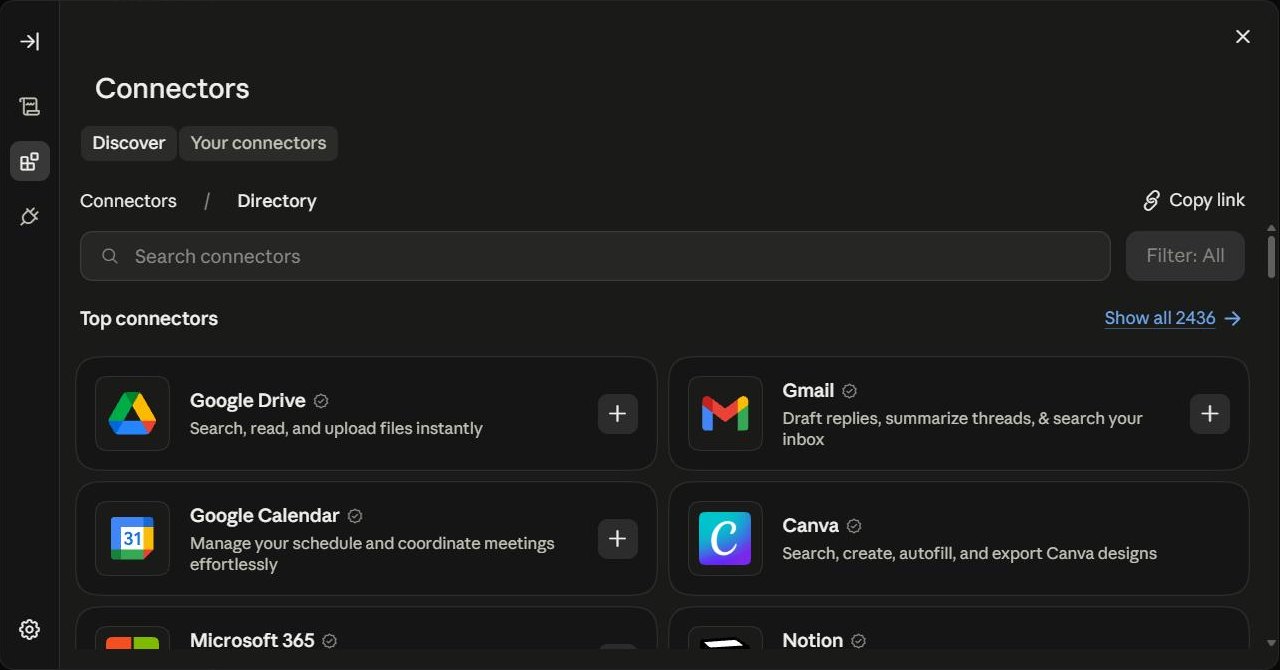
- 1Open claude.ai, press Customize in the left sidebar, then Connectors. (Settings, Connectors now just points here.) On Team or Enterprise an owner does this once under Organization settings.
- 2Open the Your connectors tab and press Add custom connector. Name it CardToPage and paste the address above as the remote MCP server URL. Leave the advanced fields empty. Press Add.
- 3Press Connect next to CardToPage. A cardtopage.com page opens: sign in with WhatsApp or Google, then press Allow.
- 4In a new chat, open the tools menu (the plus or sliders icon under the message box) and make sure CardToPage is switched on. Then upload your card image and ask for a page.
Add to ChatGPT
ChatGPT Plus and Pro can add it today through developer mode. On Business and Enterprise a workspace admin turns developer mode on first. Our listing in the ChatGPT app directory is being submitted; once it appears there, it is one click and these steps go away.
- 1Open ChatGPT Settings, then Apps & Connectors (called Connectors in some versions).
- 2Open Advanced settings at the bottom and switch Developer mode on.
- 3Back on the Connectors page press Create. Name: CardToPage. MCP server URL: the address above. Authentication: OAuth. Tick the trust box and press Create.
- 4Press Connect. Sign in on cardtopage.com with WhatsApp or Google and press Allow.
- 5In a new chat press the plus button, choose More, then CardToPage. Upload your card and ask for a page. After the first time, simply mentioning CardToPage is enough.
Things to try
- “Here is my wedding card. Turn it into a page with RSVP and directions.”
- “Change the venue on my invitation to Taj Lands End, Bandra, and add a Google Maps link.”
- “Add a gallery with these five photos and turn on RSVP with a question about dinner preference.”
- “This is our conference creative. Make a business page with the agenda, speakers and a joining link.”
- “Publish my card. I have a discount code.”
- “I have paid. Please verify and give me the live link.”
How uploads and payment work
- Card and photos: you can drop the image straight into the chat. When the assistant cannot pass a file along, it gives you a short upload link on cardtopage.com instead; open it, pick the file, come back to the chat.
- Preview: every change comes with a preview link. Open it on your phone to see exactly what guests will see.
- Publish: uploaded cards are a one-time paid plan. The assistant sends a Razorpay link; pay by UPI, card or net banking in your browser. You return to your dashboard, the payment is confirmed, and the page goes live. If it still shows as a draft, tell the assistant “I have paid” and it checks with Razorpay and publishes.
- Editing on the website: anything the assistant makes can also be edited on your dashboard, and the other way round.
Privacy and disconnecting
The assistant sees only the invitations on your account, and only after you press Allow. The AI provider (OpenAI or Anthropic) receives the invitation details you ask it to work on under its own terms. Disconnect any time from the same Connectors page in ChatGPT or Claude, or write to [email protected] and we revoke the access. Details in our privacy policy.
Prefer WhatsApp?
No assistant needed. Send the card as a photo to our WhatsApp number from the Upload your card page and the bot drafts the page for you.
Menu labels checked 8 September 2026 (Claude moved Connectors under Customize). If a step does not match what you see, tell us and we will update this page.